You’ll get a branded image card with the finding’s cue and a link, ready to send through any app on your phone — no video and no player name included.
Steps
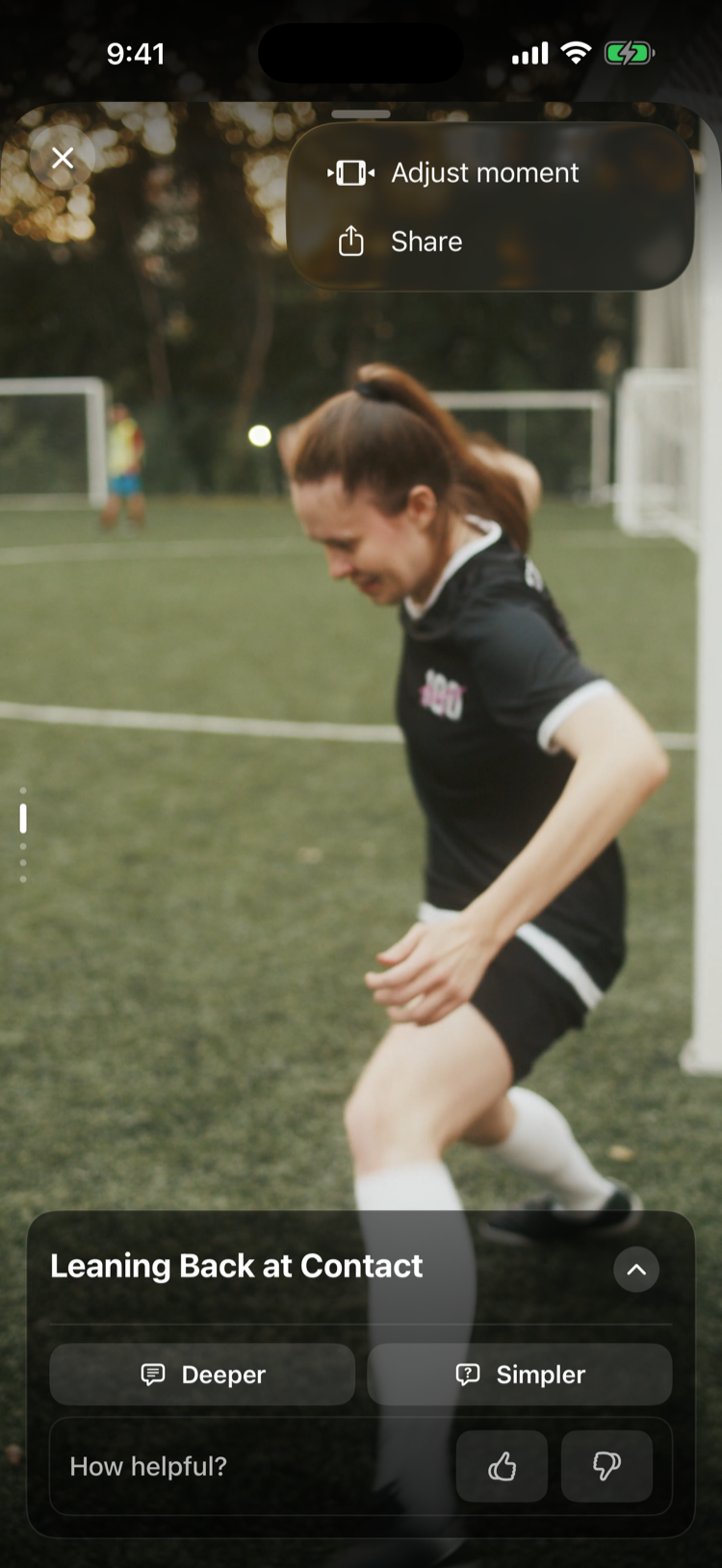
- Open the finding you want to share.
- Tap the ⋯ (More actions) button on the finding and choose Share.
- Wait a moment while 4thCoach prepares the card and link — this is usually instant, and instant on a repeat share of the same finding.
- Pick where to send it from the system share sheet — Messages, Mail, whatever you normally use.
 2
2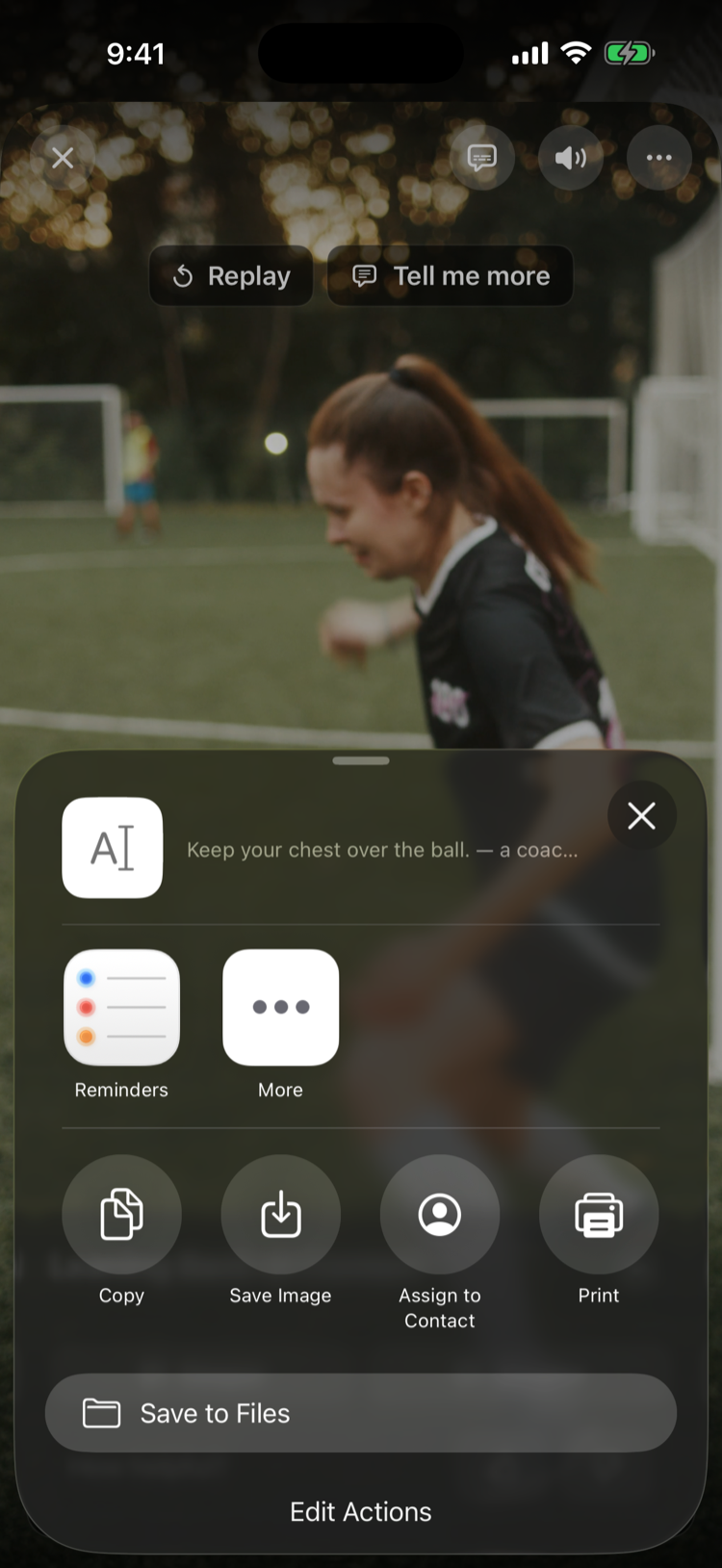
What can go wrong
- The share sheet didn’t open: if preparing the card failed (usually a connectivity hiccup), try choosing Share again.
- The link doesn’t work / mints without a link: if the link couldn’t be created, sharing still proceeds with a plain link to 4thCoach instead of the finding — the moment’s cue text is still in the image and message either way.
- What does the recipient see? Just the image, the cue text, and a link to a public page with that same cue — never the video and never your player’s name.
- Does deleting the clip or my account take the link down? No. A shared link is its own public page, so it keeps working — and keeps showing the cue text — even after you delete the clip it came from, or delete your whole 4thCoach account. Treat a link as permanent once you send it. See How do I delete a clip or my data? for what deletion does and doesn’t cover.