You’ll get a set of coaching findings for a video of your player — each one anchored to the moment it’s about, with a plain-language cue and a drill to work on.
Steps
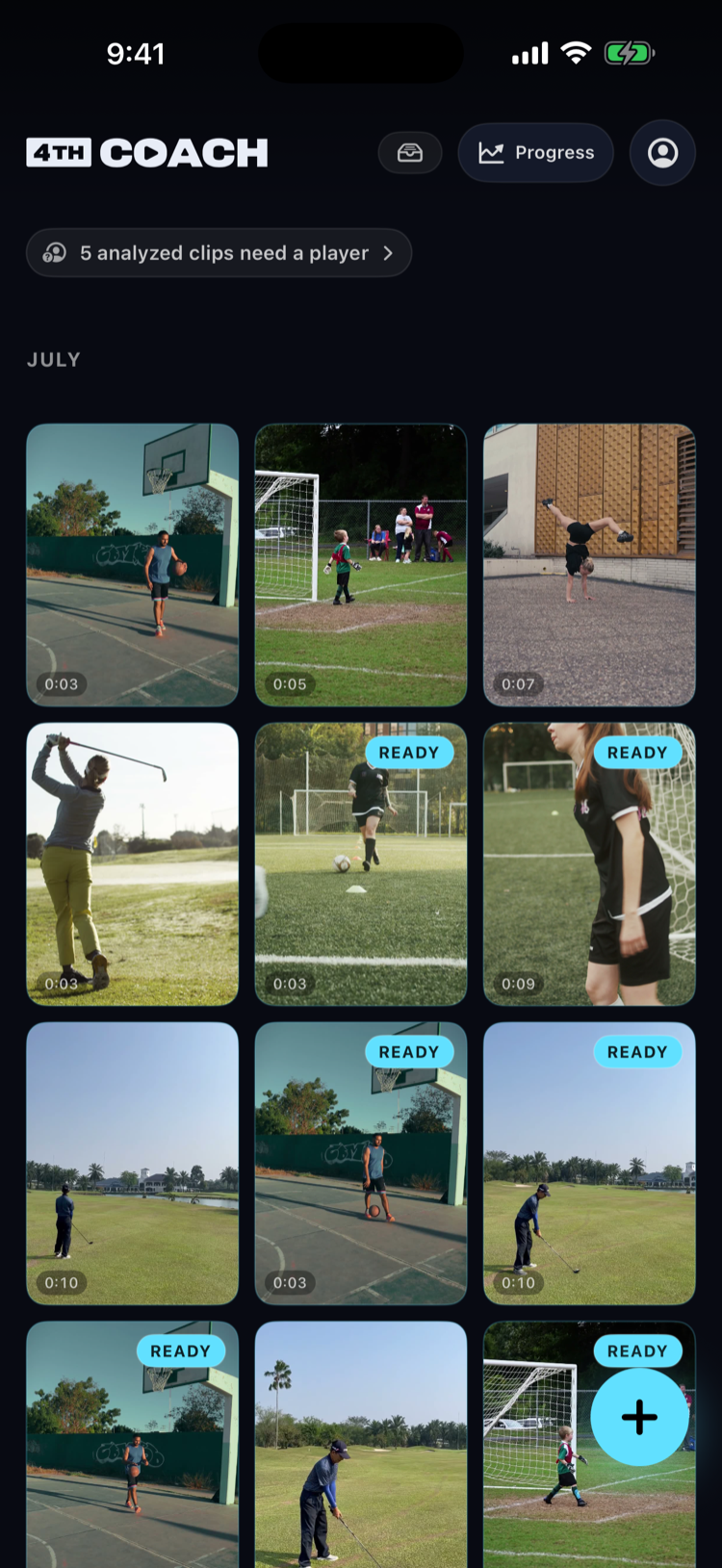
Tap the + button on the library home screen to start either path. Where trimming happens differs depending on which one you pick.
 1
1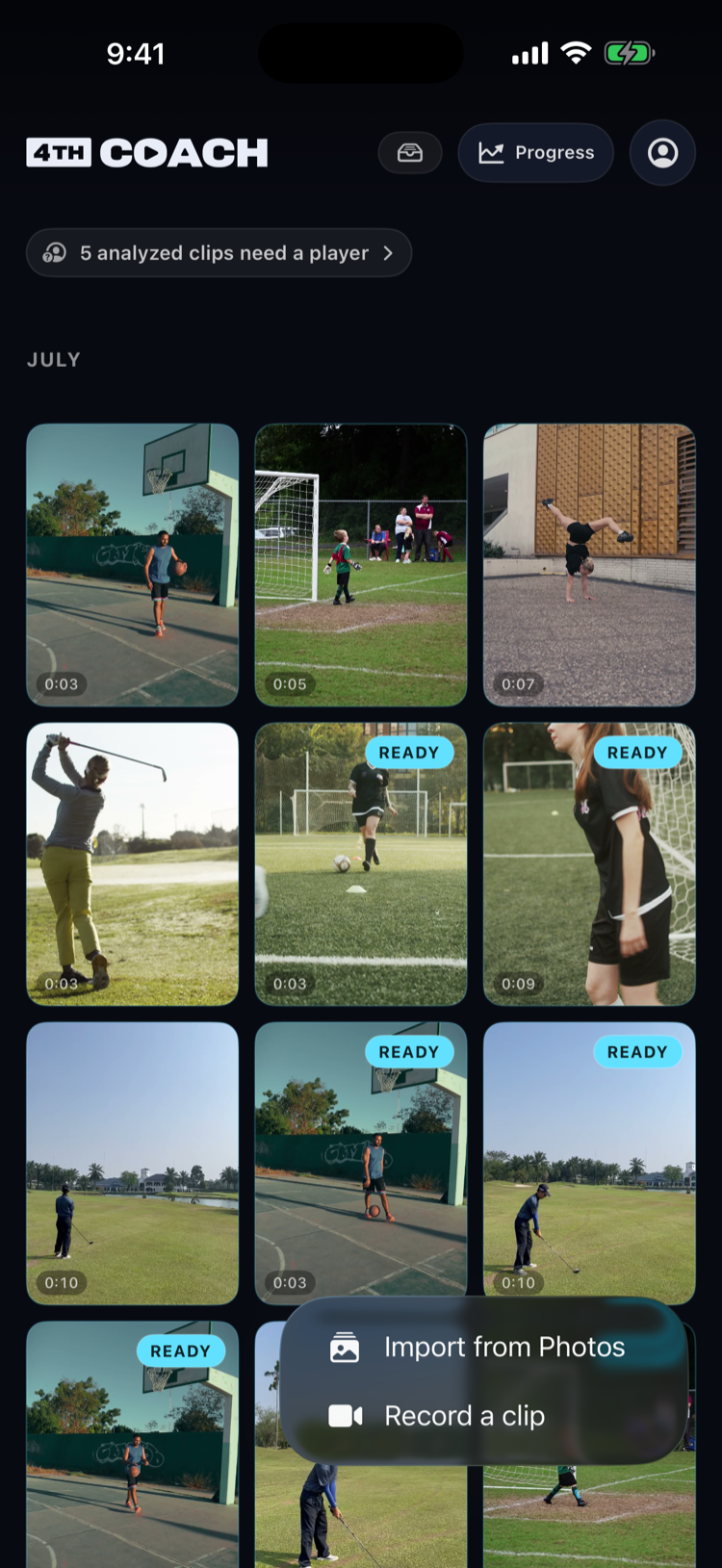
If you record with the camera
- Choose Record a clip and film with your camera.
- Trim it, if asked, right after recording finishes. A short clip passes straight through automatically; a longer one opens a trim screen with two drag handles so you can pick the part that matters.
- Confirming the trim starts the upload and analysis right away — there’s no separate Analyze tap for a fresh recording.
If you import from Photos
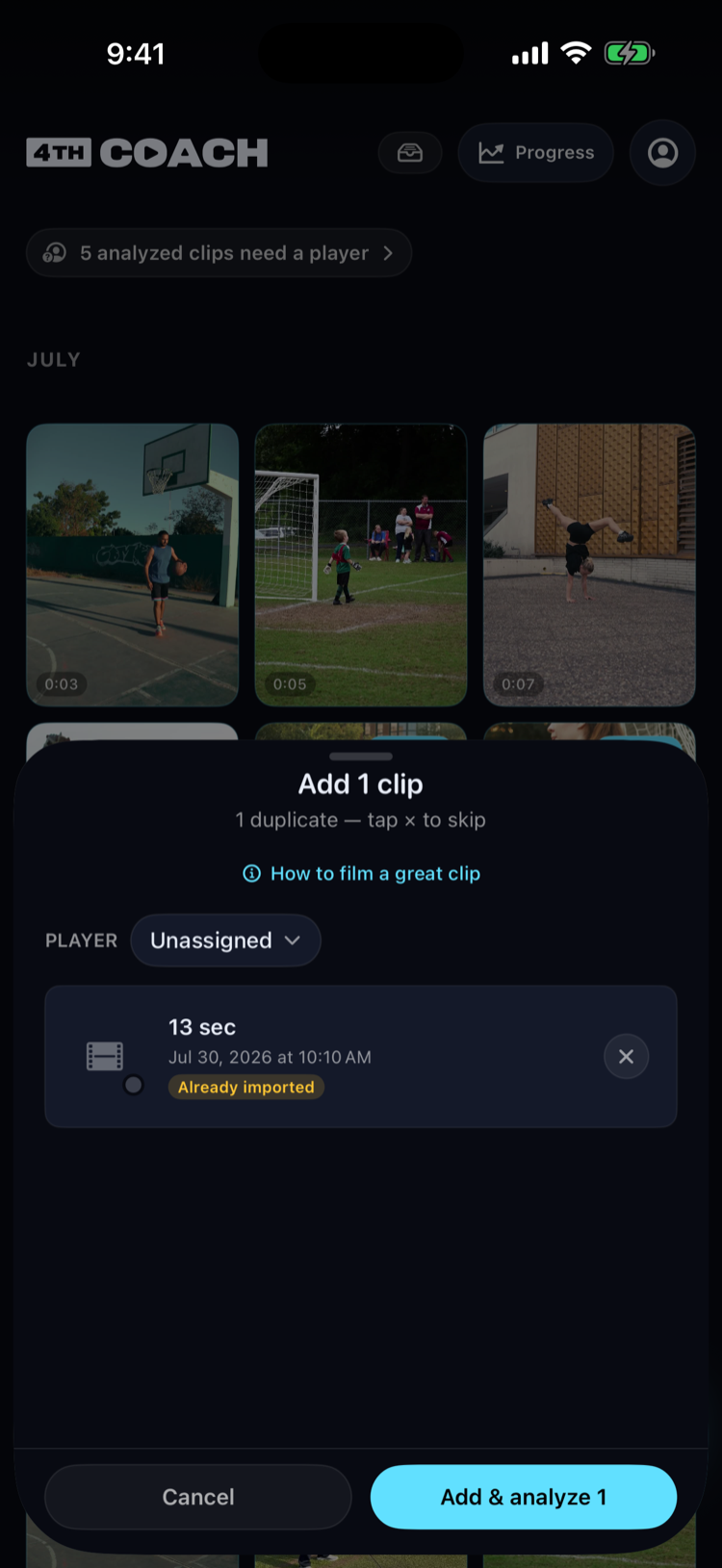
- Choose Import from Photos and select one or more existing videos (you can select more than one at a time). A review sheet lists what you’re about to add, with an optional player to attribute the whole batch to — clips already in your library are flagged as already imported.
- Confirm with Add & analyze. If a clip needs trimming, the trim screen appears now — pick the part that matters and confirm. A clip that’s already a good length starts analyzing with no trim step.
 2
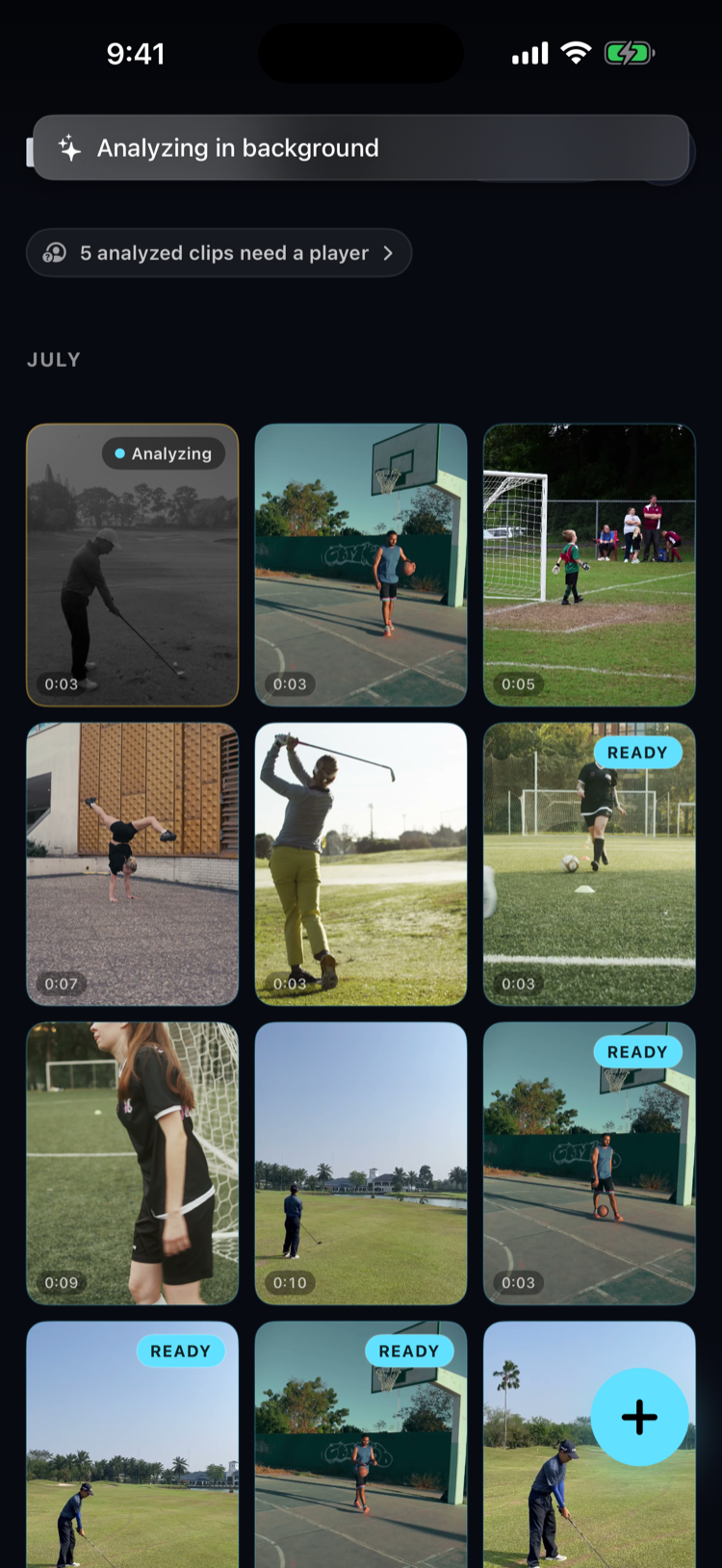
2Either way, the clip uploads and analyzes in the background — you can back out and keep using the app while it goes. A queued clip shows as uploading, then analyzing; when it’s done, the review screen’s Findings button shows your results.
What can go wrong
- Upload seems stuck: a stalled upload retries automatically on a fresh connection. If it keeps failing, open the clip and use Retry, or check your connection.
- Analysis has been running a while: it keeps going even if you close the app or lock your phone — you don’t need to keep the screen open.
- You’ve reached your analyze limit: the free plan caps how many clips you can analyze. The app shows how many you have left and when your next one unlocks; 4thCoach+ raises the limit. See How do I manage my subscription?.
- A clip came back with no coachable findings: 4thCoach may not have recognized the sport. See How do I fix a wrong sport?.